

Overview
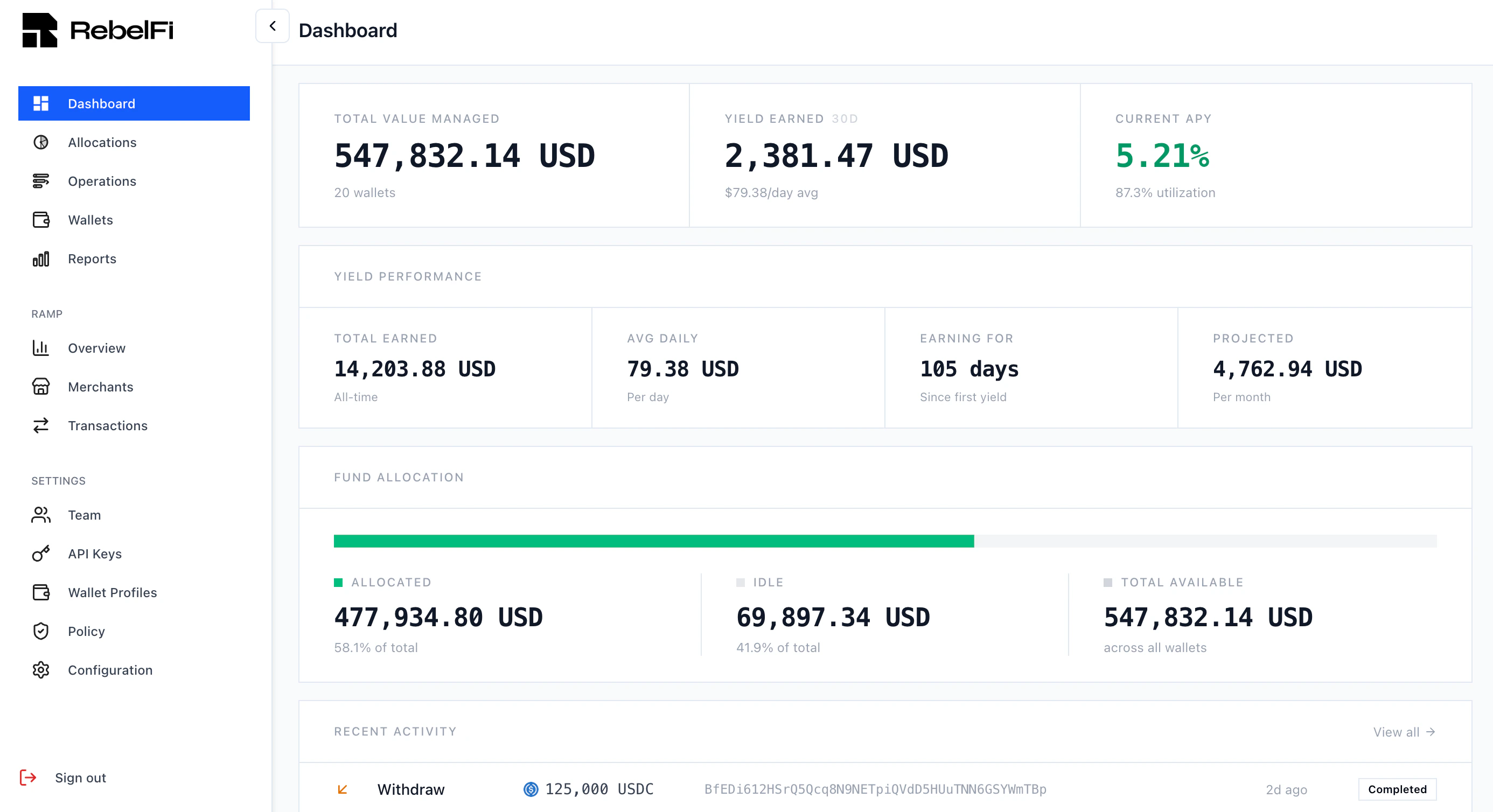
The dashboard home screen shows a real-time summary of your organization:- Total Value Managed — aggregate value across all wallets
- Yield Earned — earnings over the last 30 days
- Current APY — portfolio-weighted average yield
- Fund Allocation — breakdown of allocated vs. idle capital
- Recent Activity — latest operations and their statuses
Manual Allocations
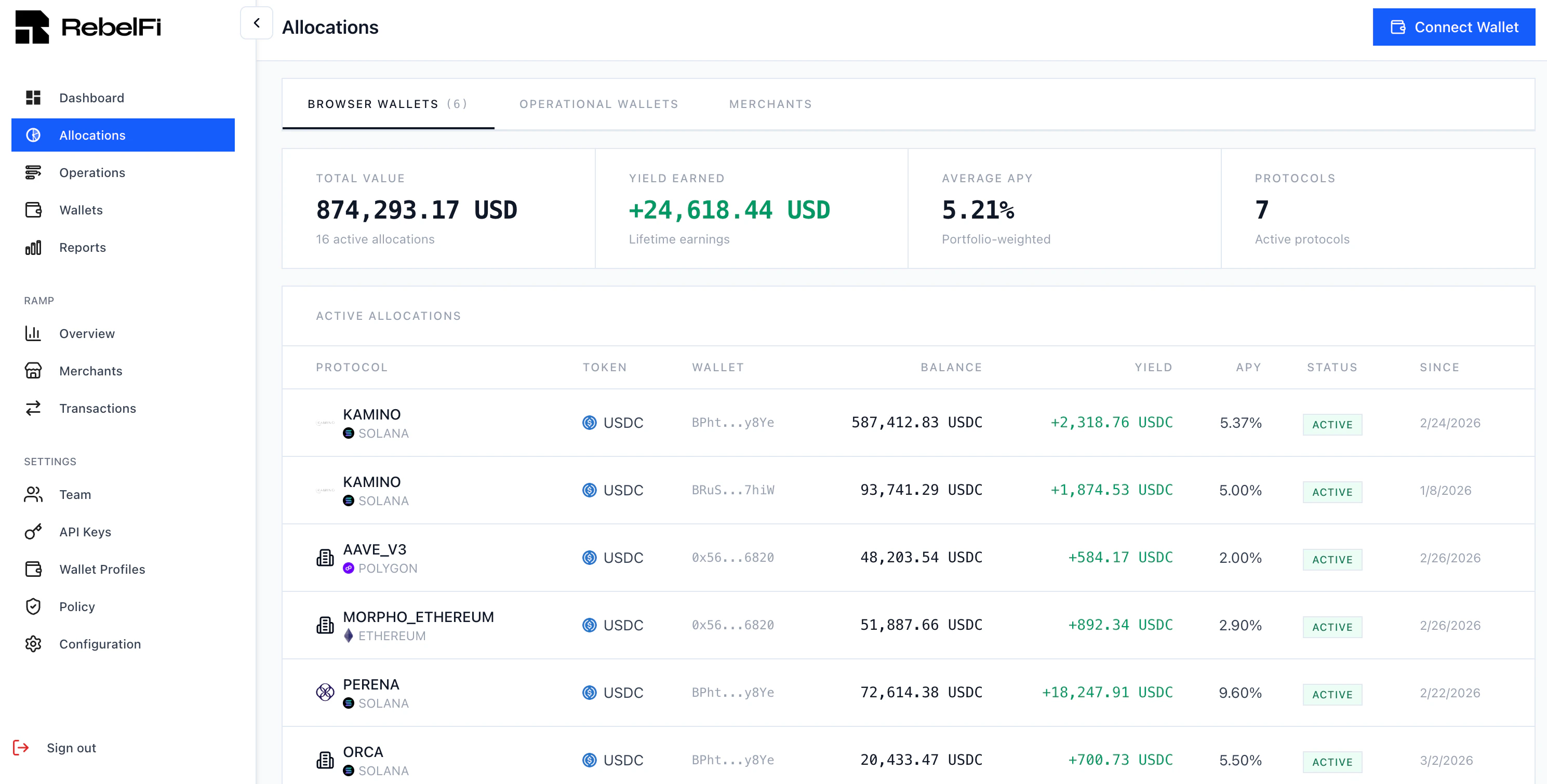
You can connect a browser wallet (MetaMask, Phantom, etc.) directly to the dashboard to perform supply and unwind operations manually. This is useful for:- Testing flows before building API/SDK automation
- One-off treasury operations
- Verifying strategy behavior on a new chain or protocol
Reporting
The Reports page provides a full transaction history with filtering by date range, transaction type, and asset.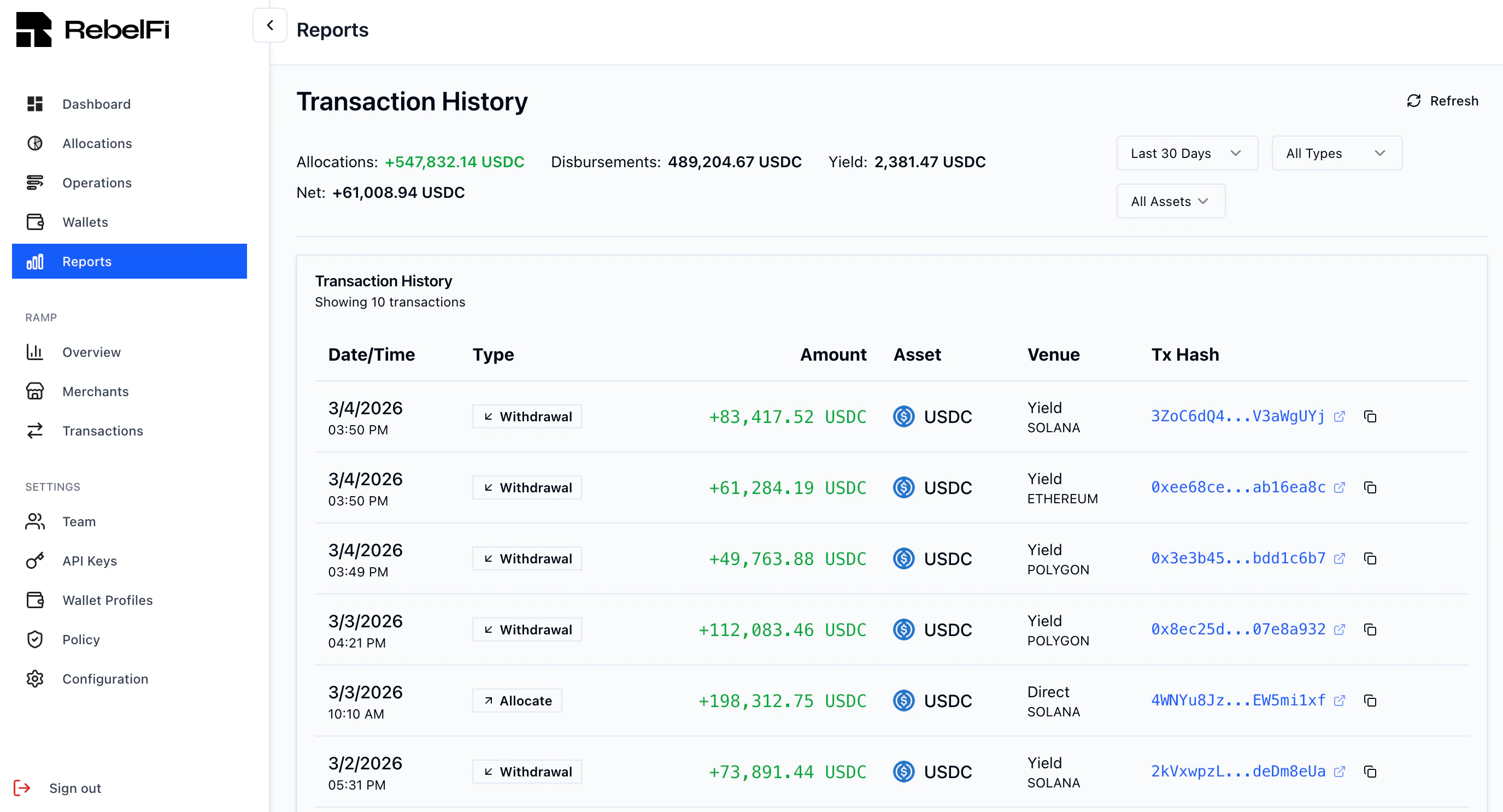
Settings
Wallet Profiles
Go to Settings → Wallet Profiles to create and manage profiles. A Wallet Profile groups SDK-managed wallets with shared configuration: enabled blockchains and gas sponsorship settings. You must create a profile before generating an API key. See Wallet Profiles for full details.API Keys
Go to Settings → API Keys to generate keys. Each key is linked to a Wallet Profile and can only manage wallets within that profile. A new key is shown once, in a dialog with a copy button. Copy it before closing the dialog: RebelFi stores only a fingerprint of it, so it can’t be shown again. If you lose a key, delete it and create a new one. The key list shows each key’s name, the start of the key (for examplerfk_prod_3fa9c1…), its scope, who created it, when it was created, and when and from which address it was last used. A key marked Created before keys were hashed — rotate dates from before keys were stored as fingerprints; replace it with a new key. Organization admins get an email when a key is created, deleted, or changed, and 7 days before a key expires.
When you create a key, choose the addresses it may be used from, or explicitly choose Any address (not recommended), and when it expires (never, 30 days, 90 days, or 1 year). Keys without an allowlist carry a No IP restriction badge. Click it, or the key’s edit button, to restrict the key: the dialog offers the addresses the key was recently used from as one-click entries.
See Authentication for key management best practices.
Account Security
Go to Settings → Preferences → Security to turn on two-factor authentication with an authenticator app. We strongly recommend it: without it, a stolen password and mailbox are enough to act as you.- Confirming sensitive actions. Creating, changing, or deleting an API key, inviting a teammate, and other sensitive actions ask for a code if you haven’t entered one in the last 10 minutes: from your authenticator app if you use two-factor authentication, otherwise a code we email you.
- Sessions. You are signed out after 2 days without activity, and at most 7 days after signing in. Resetting your password signs you out everywhere. Sign out everywhere ends every session of yours, including this one. Turning two-factor authentication on or off signs out your other sessions.
- Security emails. We email you when your password changes, when you sign in from a browser we haven’t seen before, and when your two-factor authentication changes. Organization admins also hear when an API key is created, changed, deleted, expiring, or suspended, and when a teammate is invited or joins. If a password or sign-in email describes something you didn’t do, click This wasn’t me in it, then Report this, and reset your password.
Policy
The Policy page lets you configure operational guardrails — for example, maximum allocation amounts, allowed strategies, or approval requirements.Next Steps
Quick Start
Deploy your first allocation
Wallet Profiles
Configure chains and gas sponsorship
Sandbox
Test in our sandbox environment
SDK Introduction
Automate operations with the TypeScript SDK